

01.產品外觀

-
4K攝像頭
-
電源鍵
-
IPS屏幕
-
Type-c接口
-
後拉接口
-
TF存儲卡(class10以上,512MB~256GB,不能超過256GB)
02.產品規格
本產品採用高性能芯片,提供高清晰度視頻,無縫動態畫面。使用前請仔細閱讀本手冊並妥善保存,我們希望本產品能滿足您的需求並長期服務於您!
|
AI Camera D09 |
|
|---|---|
|
錄像分辨率 |
前4K分辨率3840×2160 後2.5K分辨率2560×1440 |
|
觸摸TP |
支持,單點觸摸 |
|
儲存卡容量 |
最大支持256GB |
|
縮時錄像 |
前後雙縮時錄影,降低功耗,穩定 監控車身周圍情況。 |
|
電源接口 |
TYPE-C接口 5V 2.5A |
|
ADAS |
支持 |
|
顯示屏 |
3.0寸IPS顯示屏/分辨率640×360 |
|
工作溫度 |
-20℃ ~70℃ |
03.功能介紹
電源鍵功能
功能一:開關機功能
在關機狀態下,長按3秒鐘【電源鍵】可開啟本機電源,機器自動開始工作。在開機狀態下長按【電源鍵】並保持3秒鐘本機自動保存錄像文件及用戶設置並關機。
功能二:關閉顯示屏功能
在開機狀態點按【電源鍵】機器將屏保,再次點按電源鍵關閉顯示屏,再次點按電源鍵打開顯示屏。
功能界面操作介紹
錄像界面
1. 錄影狀態、錄影時長計時及錄影分辨率顯示
2. 時間日期顯示
3. 狀態欄,打開相應的功能顯示相應的圖標,此同手機狀態欄
4. 一鍵返回主界面操作圖標
5. 錄影開/關操作圖標
6. 拍照/抓拍操作圖標
7. 一鍵錄音開/關聲音操作圖標
8. 一鍵錄影加鎖操作圖標
9. 前/後畫面操作圖標
ADAS智能駕駛模式
1. 返回主界面操作圖標
2. 自動校準開關操作圖標
3. 手動校準界面操作圖標
4. 高級駕駛輔助系統預警開/關操作圖標
5. 辅助预警设置界面操作图标
注意:如果錄影分辨率設置成4K+2.5K後,再去打開ADAS,分辨率會自動切換到2.5K+2.5K;如果打開ADAS後再去把分辨率設定成4K+2.5K,ADAS會自動關閉。
04.安裝指南
1. 關閉汽車引擎。
2. 將TF卡插入記錄儀卡槽。【注意】請使用高速TF卡(Class10以上),
容量不小於512MB,TF卡最大支援256GB。
3. 將記錄儀固定在汽車的原後視鏡上。
4. 將車載充電器插入汽車點煙器。
5. 用充電延長線將記錄儀的USB接口和車載充電器連接起來。【注意】佈
線時可將充電延長線沿著汽車擋風玻璃邊緣敷設。
6. 將後置攝像頭安裝在車輛後部,安裝時請注意方向。佈線可沿車輛頂棚
敷設。安裝完成後將後插頭接上記錄儀後置攝像頭接口。
7. 調整鏡頭位置,確保鏡頭與地面保持水平。
8. 發動引擎,檢查機器是否已安裝正確。【注意】當機器安裝正確,系統
工作指示燈點亮;機器啟動進入記錄狀態,錄影指示燈閃爍。請注意檢
查顯示幕上的畫面是否正常,如顯示畫面為倒像,請及時與我們聯絡。
05.APP連接使用教程
連接步驟

步驟1
掃描二維碼下載Honnmono App。下載完成後打開App並註冊一個帳戶。
步驟2
註冊完成後,進入“個人主頁”,點擊“添加設備”,跳轉到添加設備界面,點擊“行車記錄儀”模塊,添加你的行車記錄儀。
步驟3
手機連接WIFI,WIFI名稱:DriveEZ_D09_XXXXXX;開頭密碼:12345678;或者查看機子設置裡的WIFI名稱和密碼。連接WIFI完成後,回到Honnmono APP進行設備添加。點擊“加入記錄儀”,設備開始自動連接,連接成功跳轉到記錄儀頁面。
記錄儀預覽說明
點擊“進入記錄儀畫面”進入如下界面。
1. 設備在線顯示
2. 全屏按鈕
3. 暫停/開始錄製按鈕
4. 快拍按鈕
5. 視頻回放按鈕
6. 設置按鈕
06.常見故障
|
故障 |
原因 |
解決辦法 |
|---|---|---|
|
機子無法開機 |
檢查機子USB口電源線是否鬆動 |
重新插入或更換 |
|
錄像不清晰 |
鏡頭是否有灰塵或者臟/ 汽車玻璃是否有灰塵或者臟 |
用無塵佈擦理乾淨 |
|
錄像視頻曝光 |
檢查鏡頭角度是否朝天空 |
重新調攝像頭角度 |
|
不錄像 |
檢查T卡插入/損壞 |
重新插拔或者更換 |
|
不能循環錄像 |
檢查錄像文件是否加鎖 |
格式內存卡/ 恢復出廠設置 |
01. Product Appearance
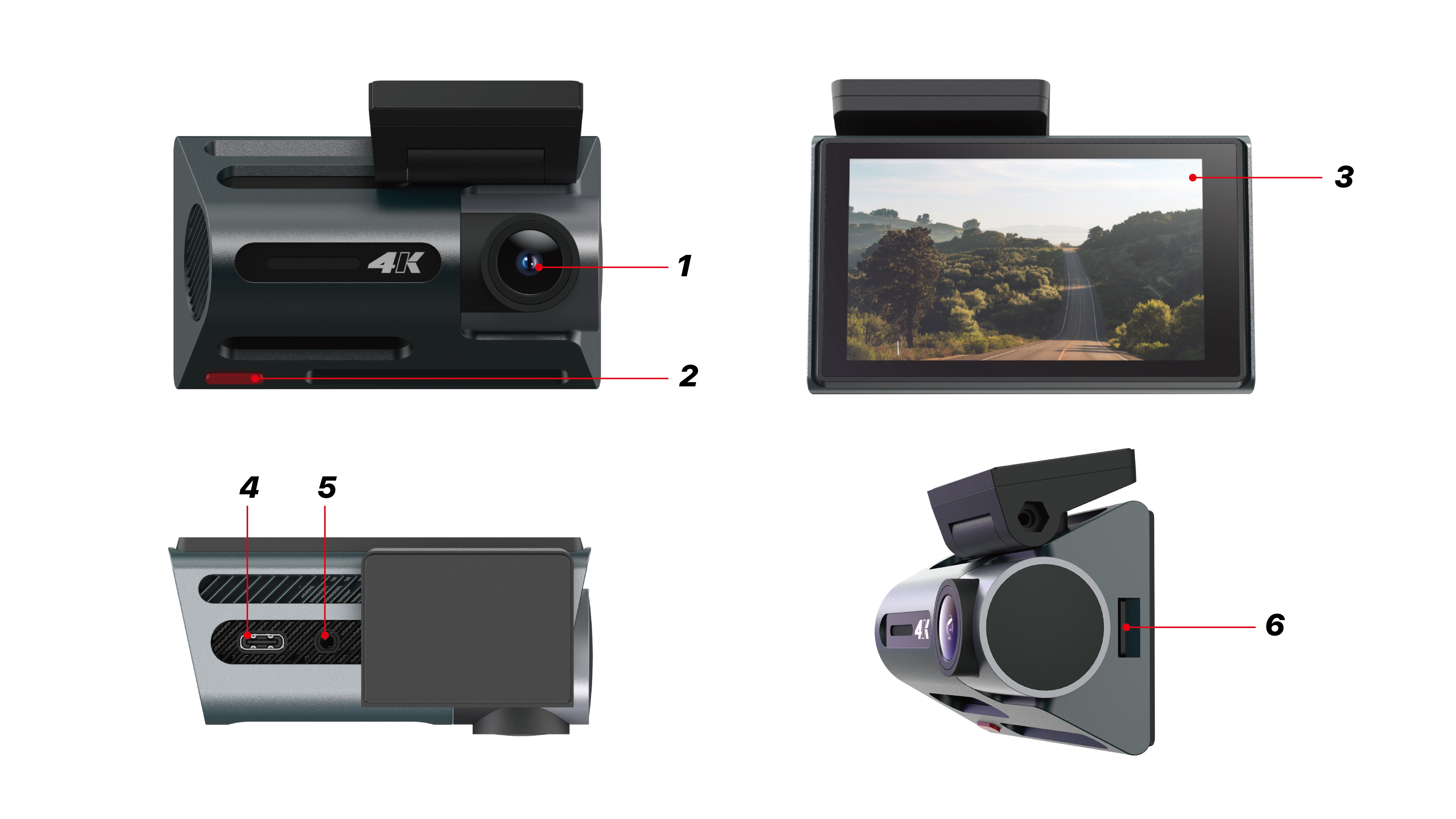
-
4K Camera
-
Power Button
-
IPS Screen
-
Type-C Interface
-
Rear Pull Interface
-
TF Storage Card (Class 10 or above, 512MB~256GB, cannot exceed 256GB)
02. Product Specifications
This product uses a high-performance chip, providing high-definition video and seamless dynamic images. Please read this manual carefully before use and keep it properly. We hope this product meets your needs and serves you for a long time!
|
AI Camera D09 |
|
|---|---|
|
Video Resolution |
Front 4K Resolution 3840×2160 Rear 2.5K Resolution 2560×1440 |
|
Touch TP |
Supported, single touch |
|
Storage Card Capacity |
Maximum support 256GB |
|
Time-lapse Recording |
Front and rear dual time-lapse recording, reduces power consumption, stabilizes monitors the surroundings of the vehicle. |
|
Power Interface |
TYPE-C Interface 5V 2.5A |
|
ADAS |
Supported |
|
Display |
3.0 inch IPS display screen/Resolution 640×360 |
|
Operating Temperature |
-20℃ ~70℃ |
03. Function Introduction
Power Button Function
Function One: Power On/Off
In the off state, long press the 【Power Button】 for 3 seconds to turn on the device, which will then start working. In the on state, long press the 【Power Button】 for 3 seconds to automatically save the recording files and user settings before shutting down.
Function Two: Turn Off Display Function
In the on state, press the 【Power Button】 to activate the screensaver. Press the power button again to turn off the display. Press the power button again to turn on the display.
Function Interface Operation Introduction
Recording Interface
1. Recording status, recording duration timer, and recording resolution display
2. Time and date display
3. Status bar, corresponding icons displayed when the respective functions are activated, same as the mobile phone status bar
4. One-click return to the main interface operation icon
5. Recording on/off operation icon
6. Photo/ Snapshot operation icon
7. One-click audio recording on/off operation icon
8. One-click recording lock operation icon
9. Front/ rear view operation icon
ADAS Intelligent Driving Mode
1. Return to main interface operation icon
2. Automatic calibration switch operation icon
3. Manual calibration interface operation icon
4. Advanced Driver Assistance System warning on/off operation icon
5. Assistance warning setting interface operation icon
Note: If the video resolution is set to 4K+2.5K, when ADAS is turned on, the resolution will automatically switch to 2.5K+2.5K; if ADAS is turned on and then the resolution is set to 4K+2.5K, ADAS will automatically turn off.
04. Installation Guide
1. Turn off the car engine.
2. Insert the TF card into the recorder's card slot. 【Note】 Please use a high-speed TF card (Class 10 or above),
with a capacity of no less than 512MB, TF card maximum supporting 256GB.
3. Secure the recorder to the original rearview mirror of the car.
4. Insert the car charger into the car's cigarette lighter.
5. Connect the recorder's USB interface to the car charger using a charging extension cable. 【Note】 While wiring, the charging extension cable can be laid along the edge of the car's windshield.
6. Install the rear camera at the rear of the vehicle, paying attention to the direction during installation. Wiring can be laid along the vehicle's ceiling.
After installation, connect the rear plug to the recorder's rear camera interface.
7. Adjust the lens position to ensure that the lens remains level with the ground.
8. Start the engine and check if the device has been installed correctly. 【Note】 When the device is installed correctly, the system's working indicator light will illuminate; the device will enter recording mode, and the recording indicator light will flash. Please check if the display on the screen is normal; if the image is upside down, please contact us in a timely manner.
05. APP Connection Usage Tutorial
Connection Steps

Step 1
Scan the QR code to download the Honnmono App. After downloading, open the App and register an account.
Step 2
After registration, go to the “Personal Homepage,” click “Add Device,” navigate to the add device interface, click the “Dash Cam” module, and add your dash cam.
Step 3
Connect your phone to WIFI, WIFI name: DriveEZ_D09_XXXXXX; starting password: 12345678; or check the machine settings for the WIFI name and password. After connecting to WIFI, return to the Honnmono APP to add the device. Click “Join Recorder,” the device will start connecting automatically, and upon successful connection, it will redirect to the recorder page.
Recorder Preview Explanation
Click “Enter Recorder Screen” to access the following interface.
1. Device online display
2. Full screen button
3. Pause/start recording button
4. Snap button
5. Video playback button
6. Settings button
06. Common Faults
|
Fault |
Reason |
Solution |
|---|---|---|
|
Device Cannot Power On |
Check if the power line at the device's USB port is loose |
Reinsert or replace |
|
Recording Not Clear |
Is the lens dusty or dirty? Is the car glass dusty or dirty? |
Wipe it clean with a lint-free cloth |
|
Video Exposure |
Check if the lens angle is facing the sky |
Readjust the camera angle |
|
Not Recording |
Check if the T card is inserted/damaged |
Reinsert or replace |
|
Cannot Loop Record |
Check if the recording file is locked |
Format memory card/ Restore factory settings |


