

01.產品介紹
旨在為 CCS2 電動汽車在 GB/T 充電站的無縫高效充電解決方案。確保兼容性 在使用 GBT 至 CCS2 適配器之前,請參考產品規格和您車輛的要求,以確保其兼容性。

-
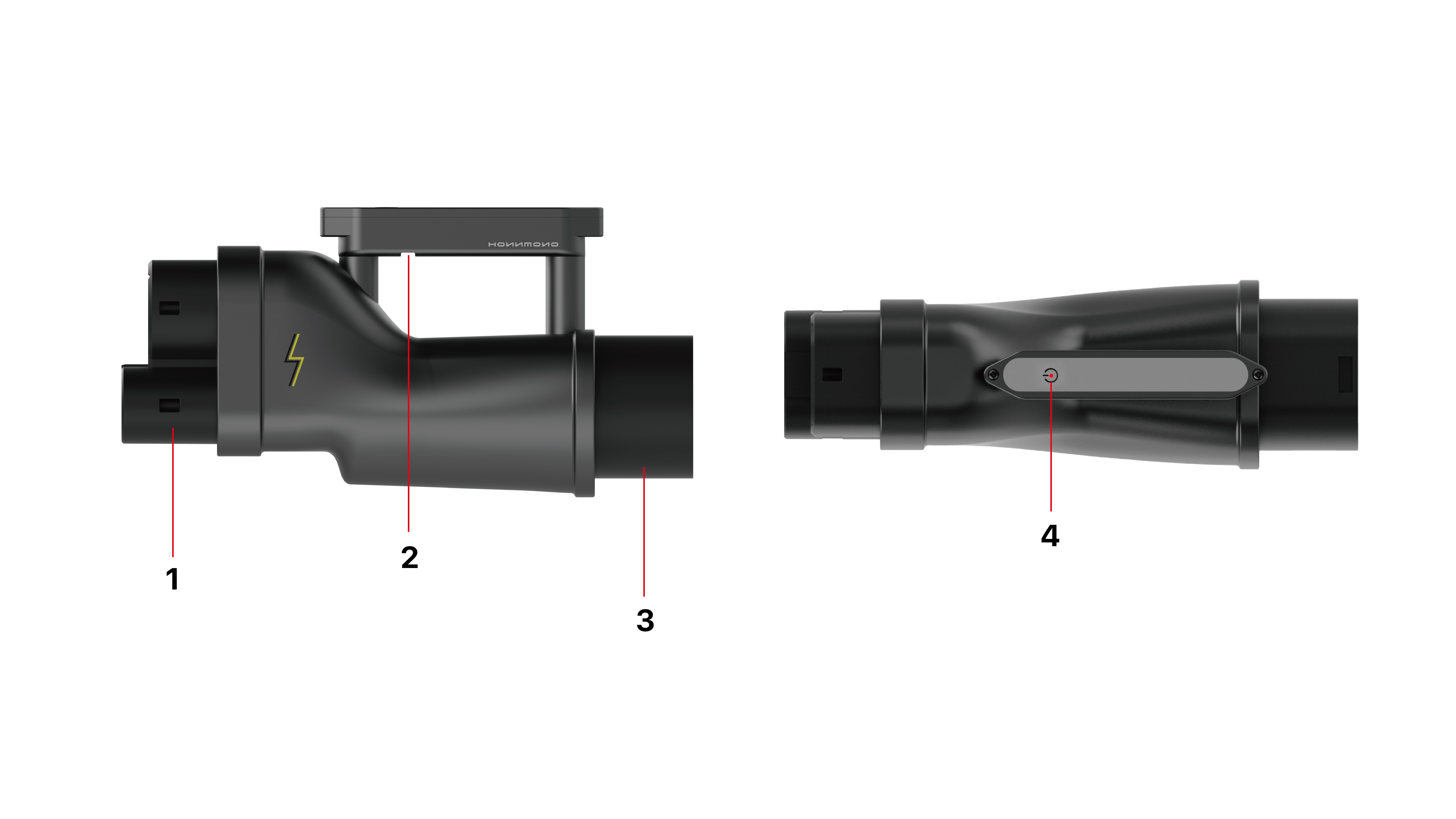
CCS2端口
-
type-c接口(更新固件)
-
GB/T端口
-
狀態指示燈&按鍵
|
DC 轉插產品規格 |
|
|---|---|
|
電流 |
200A DC |
|
電壓 |
1000V DC |
|
工作溫度(攝氏) |
-30°C ~85°C |
|
儲存溫度(攝氏) |
-40°C~85°C |
|
重量(kg/鎊) |
1.8kg/3.97lb |
|
認證 |
CE |
|
防護等級 |
IP65 |
02.使用流程&綁定設備

-
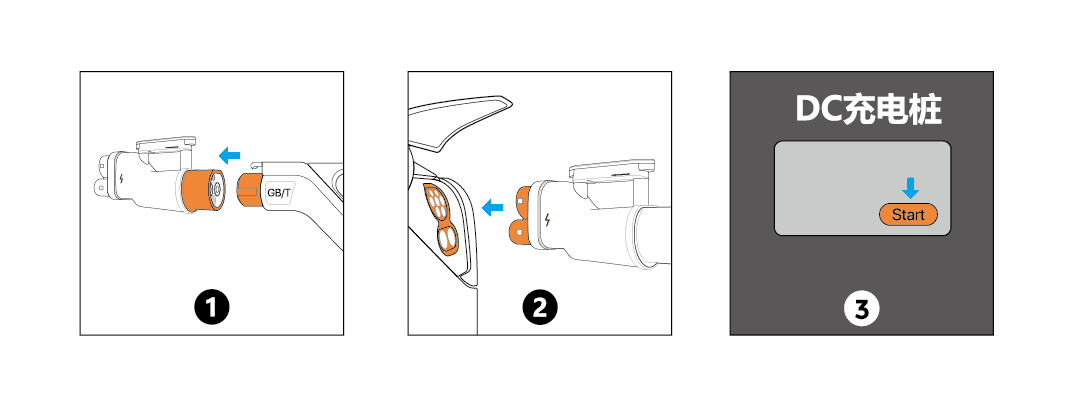
將CCS2-GB/T完全插入電車充電接口上。
-
接上充電槍,注意充電槍的卡舌要扣上轉插國標端口的扣位。
-
請稍等10-30秒待轉插和充電樁完成溝通,充電樁上/App小程序會出現開始充電的開關,按下開關即開始充電。
03.更新固件程序
-
準備一個用於固件更新的USB裝置:
需要將USB裝置格式化為FAT32文件系統,容量不超過16GB。
清空USB裝置內的所有文件。
只將文件'MAIN_GBT2CCS_2.UPG'復制到USB裝置的根目錄。
-
更新固件:
將USB裝置插入DC轉插的USB端口(在手提柄的正下方)。
-
啟動電源:
按下電源按鈕以打開設備。
指示燈將開始快速閃爍。
大約10秒後,指示燈將持續常亮,然後設備將關閉。
-
完成固件更新:
從DC轉插中取出USB裝置。
再次按下電源按鈕以啟動設備。
指示燈將快速閃爍,表示固件更新正在進行中。
04.注意
-
只能用幹布清潔
-
避免拆卸、摔落或重擊
-
建議使用者先選擇大型充電站的品牌,例如:小桔充電,快充,開邁斯,樂充,易事特,特来電等等。
-
如果充電不成功,可以嘗試站內的其他充電樁,很多使用者反映部份充電樁有可能本身己壞掉。
05.保修
本產品保修 2 年,我 們 轉 插 一 旦 發 現 有 曾 經 折 開,及出現誤用、失誤操作、疏忽、車輛事故或改裝,保修將失效。我們的保修只包括自然損壞。
01. Product Introduction
Aimed at providing a seamless and efficient charging solution for CCS2 electric vehicles at GB/T charging stations. Ensure compatibility Before using the GBT to CCS2 adapter, please refer to the product specifications and your vehicle's requirements to ensure compatibility.
-
CCS2 Port
-
Type-C interface (firmware update)
-
GB/T Port
-
Status indicator & button
|
DC Plug Product Specifications |
|
|---|---|
|
Current |
200A DC |
|
Voltage |
1000V DC |
|
Operating Temperature (Celsius) |
-30°C ~85°C |
|
Storage Temperature (Celsius) |
-40°C~85°C |
|
Weight (kg/lb) |
1.8kg/3.97lb |
|
Certification |
CE |
|
Protection Level |
IP65 |
02. Usage Process & Binding Device
-
Completely insert the CCS2-GB/T into the electric vehicle charging interface.
-
Connect the charging gun, making sure the latch on the charging gun clicks into the standard plug port's position.
-
Please wait for 10-30 seconds for the plug and charging pile to complete communication, and a switch to start charging will appear on the charging pile/App mini program. Press the switch to start charging.
03. Firmware Update Procedure
-
Prepare a USB device for firmware update:
The USB device needs to be formatted to FAT32 file system, with a capacity not exceeding 16GB.
Clear all files from the USB device.
Only copy the file 'MAIN_GBT2CCS_2.UPG' to the root directory of the USB device.
-
Update firmware:
Insert the USB device into the USB port of the DC plug (located directly beneath the handle).
-
Power on:
Press the power button to turn on the device.
The indicator light will start blinking quickly.
After about 10 seconds, the indicator light will remain on, and then the device will turn off.
-
Complete firmware update:
Remove the USB device from the DC plug.
Press the power button again to start the device.
The indicator light will blink quickly, indicating that the firmware update is in progress.
04.Note
-
Only clean with a dry cloth
-
Avoid disassembly, dropping, or heavy impact
-
It is recommended that users initially choose brands from large charging stations, such as: Xiaoju Charging, Fast Charging, Kamaisi, Lechong, Yishite, Teld, etc.
-
If charging is unsuccessful, you may try other charging piles in the station, as many users have reported that some charging piles may be faulty.
05. Warranty
This product has a 2-year warranty. Our plug warranty will void if it is found to have been cracked, or if there is misuse, operating errors, negligence, vehicle accidents, or modifications. Our warranty only covers natural wear and tear.


